Insights to Help Your Business Stay Ahead

Free IT Guides and Tools

Easy-to-understand articles, practical tips and trusted IT tools — all in one place.


TESTING DRAFT

Simple Free IT Guides and Tools Tips to Enhance Your Business

See All Free IT Guides and Tools

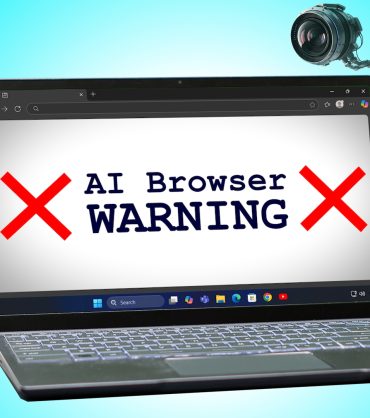
Consider this before using AI browsers at work

Consider this before using AI browsers at work

Ever wondered what really happens behind the scenes when your team uses an AI-powered browser? There’s a hidden trade-off between convenience and security that most…
Continue Reading
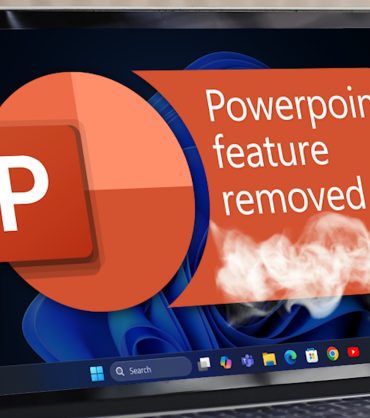
PowerPoint drops its “Reuse Slides” feature

PowerPoint drops its “Reuse Slides” feature

Have you noticed a time saving feature is missing from PowerPoint? It’s not a mistake. But it might be a productivity killer. Luckily, there are…
Continue Reading
At last: Sync passkeys across your devices

At last: Sync passkeys across your devices

Tired of juggling passwords and endless reset emails? There’s a smarter, safer way to log in. Once again, Microsoft is about to make life a…
Continue Reading
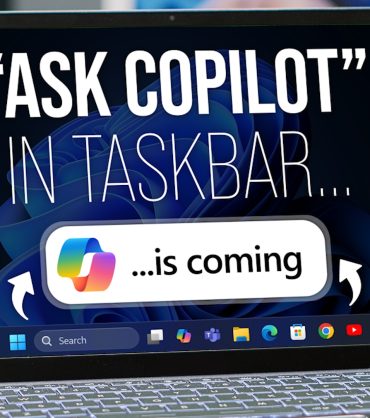
“Ask Copilot” is coming to your Taskbar (but only if you want it to)

“Ask Copilot” is coming to your Taskbar (but only if you want it to)

What if your computer could understand what you mean, not just what you type? Microsoft’s testing something new in Windows 11 that could completely change…
Continue Reading
Microsoft Edge introduces a new scam protection tool

Microsoft Edge introduces a new scam protection tool

Those fake “your computer is infected” pop-ups are getting smarter. And scarier. But there’s some big news from Microsoft that could make them a thing…
Continue Reading
Is your team using AI well? Copilot can tell you

Is your team using AI well? Copilot can tell you

You’ve adopted Copilot in your business. You know the potential benefits are huge. But is your team as enthusiastic about using it as you are?…
Continue Reading
IT Help Guide

Quick Answers to Common Tech Problems

If something isn’t working as it should, have a look through our answers to common tech problems. These easy to follow guides will help you solve the most common IT problems small businesses face every day.

Slow internet is usually caused by either your broadband provider, a poor Wi-Fi signal, or too many devices using the network. Check your speed using FAST.com. If your speed looks normal, try restarting your router.

This often happens when your connection is unstable. Check if Microsoft has an outage at status.office.com, and make sure you’re close to your Wi-Fi router.

Outlook problems are usually caused by a full mailbox, a sync issue, or a Microsoft service outage. Restart Outlook and check the Microsoft 365 Status page.

Printers disconnect when they lose their IP address or Wi-Fi signal. Restart the printer and make sure it’s on the same network as your computer.

A slow computer is normally caused by low storage, too many apps running, or missing updates. Restart your device and check for Windows updates.

Visit the public Microsoft status page at status.office.com. If Teams, Outlook or SharePoint are having issues, it will show there.

OneDrive stops syncing when your storage is full, your device is offline, or you’re not logged in. Click the OneDrive icon and check for any warning messages..

Disconnect your device from the internet and change your password immediately. Then tell your IT support team straight away so they can check for risks.

Use the Password Strength tool at howsecureismypassword.net. A strong password should be at least 8 characters long and include letters, numbers, and symbols.

Go to haveibeenpwned.com and check your email address. If it shows up in a breach, change your password and turn on MFA.

This happens when the signal is weak or there are thick walls in the way. Try moving closer to the router or using a Wi-Fi extender.

Yes — restarting fixes many common issues, including software freezes, connection problems, and update errors.

This is often caused by blocked camera/microphone permissions, a slow connection, or a Teams/Zoom outage. Restart your browser or app and check your internet speed.

MFA (Multi-Factor Authentication) adds an extra security step when you log in. It protects your accounts even if someone knows your password.

Cyber Essentials is a government-backed scheme that protects your business from common cyber threats. Many organisations now require it before working with you.

Most small businesses complete it within 1–3 weeks depending on how prepared they are.

Expired antivirus, weak passwords, old devices, missing updates, and unsecured admin accounts are the top causes.

Cyber Essentials covers the basics. Cyber Essentials Plus adds a hands-on technical audit for higher assurance.

You’ll need details on devices, users, passwords, antivirus, firewalls and update policies.

Outlook may need an update, your profile may be corrupt, or your mailbox may be full. Restart the app and install pending updates.

Teams uses cached data that sometimes becomes corrupt. Restart Teams fully or clear the cache.

This happens when your password has expired, MFA isn’t completed, or your licence has expired.

Your permissions may have changed or the file is locked by someone else. Try opening it in the browser instead of the desktop app.

Large files or poor internet cause sync delays. Check available storage and ensure you are online.

Check the sender address, spelling mistakes, and unexpected links.
If unsure, don’t click anything.

SMEs should use modern endpoint protection as it’s stronger and stops advanced threats in real time.

Yes. Most attacks succeed because of weak or stolen passwords.
MFA blocks over 99% of account breaches.

Whenever a compromise is suspected — not on a fixed schedule.
Long, unique passwords + MFA = best security.

Ransomware encrypts your data and demands payment. Use backups, endpoint protection, MFA, and train staff to spot phishing emails.

Too many apps, dust in the vents or poor airflow can cause overheating.
Restart and ensure the vents aren’t blocked.

You may be on airplane mode, have a driver issue or be too far from the router.
Restart Wi-Fi and reconnect.

Start-up apps and old hard drives slow down boot times.
Disable unused start-up apps or upgrade to SSD.

The port may be damaged, the device may need drivers, or Windows hasn’t recognised it.
Try another port or restart the device.

Screen resolution or scaling may be incorrect. Adjust it in Display Settings.

Book Your Free IT Health Check

Still stuck? We’re here to help.

Our friendly team will diagnose and fix your issue — fast and in plain English.